1. 먼저 Vagrantfile 을 구성
notepad ++ 에서 아래와 같이 작성하자!!
# --- Ansible Server ---

Vagrant.configure("2") do |config|
	config.vm.define "my-ansible-server" do |cfg|
		cfg.vm.box = "centos/7"
		cfg.vm.provider "virtualbox" do |vb|
			vb.name = "ansible-server"
			vb.cpus = 2
			vb.memory = 4096
			vb.gui = false
		end
		cfg.vm.host_name = "control.example.com"
		cfg.vm.network "private_network", ip: "192.168.110.10"
		cfg.vm.provision "shell", path: "ssh_conf.sh"
		cfg.vm.synced_folder "../data", "/vagrant", disabled: true
		cfg.vm.provision "shell", inline: "yum -y install centos-release-ansible-29.noarch"
		cfg.vm.provision "shell", inline: "yum install ansible -y"
		cfg.vm.provision "file", source: "ansible_env_ready.yml",
			destination: "ansible_env_ready.yml"
		cfg.vm.provision "shell", inline: "ansible-playbook ansible_env_ready.yml"
	end

# --- managed node 1 ---
	config.vm.define "my-managed-node1" do |cfg|
		cfg.vm.box = "centos/7"
		cfg.vm.provider "virtualbox" do |vb|
			vb.name = "my-node1"
			vb.cpus = 1
			vb.memory = 2048
			vb.gui = false
		end
		cfg.vm.host_name = "node1.example.com"
		cfg.vm.network "private_network", ip: "192.168.110.20"
		cfg.vm.provision "shell", path: "ssh_conf.sh"
		cfg.vm.synced_folder "../data", "/vagrant", disabled: true
	end

# --- managed node 2 ---
	config.vm.define "my-managed-node2" do |cfg|
		cfg.vm.box = "centos/7"
		cfg.vm.provider "virtualbox" do |vb|
			vb.name = "my-node2"
			vb.cpus = 1
			vb.memory = 2048
			vb.gui = false
		end
		cfg.vm.host_name = "my-node2.example.com"
		cfg.vm.network "private_network", ip: "192.168.110.30"
		cfg.vm.provision "shell", path: "ssh_conf.sh"
		cfg.vm.synced_folder "../data", "/vagrant", disabled: true
	end

# --- managed node 3 ---
	config.vm.define "my-managed-node3" do |cfg|
		cfg.vm.box = "centos/7"
		cfg.vm.provider "virtualbox" do |vb|
			vb.name = "my-node3"
			vb.cpus = 1
			vb.memory = 2048
			vb.gui = false
		end
		cfg.vm.host_name = "node3.example.com"
		cfg.vm.network "private_network", ip: "192.168.110.40"
		cfg.vm.provision "shell", path: "ssh_conf.sh"
		cfg.vm.synced_folder "../data", "/vagrant", disabled: true
	end
end
2. ansible 환경 준비를 .yml로 작성한다.
notepad ++ 로 작성하자!!
#ansible_env_ready.yml

---
- name: setup for the ansible's environment
  hosts: localhost
  gather_facts: no

  tasks:
    - name: add managed node to "/etc/hosts"
      blockinfile:
       path: /etc/hosts
       block: |
        192.168.110.20   node1.example.com node1
        192.168.110.30   node2.example.com node2
        192.168.110.40   node3.example.com node3
    - name: add hosts to inventory file
      blockinfile:
        path: /etc/ansible/hosts
        block: |
         [centos]
         node1
         node2
         node3

    - name: create vim env's directory & files
      shell: "{{item}}"
      loop:
        - "touch /home/vagrant/.vimrc"
        - "touch /home/vagrant/.bashrc"
    - name: install vim-enhanced and git
      yum:
        name:
          - vim-enhanced
          - git
        state: present

    - name: configure .vimrc
      lineinfile:
        path: /home/vagrant/.vimrc
        line: autocmd FileType yaml setlocal ai ts=2 sw=2 et
    - name: configure .bashrc
      lineinfile:
        path: /home/vagrant/.bashrc
        line: "{{item}}"
        loop:
          - "alias ans='ansible'"
          - "alias anp='ansible-playbook'"
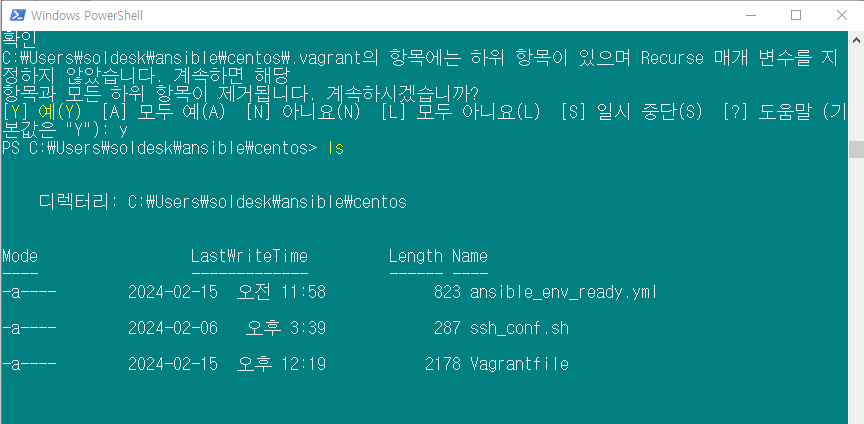
3. Windows PowerShell에서 아래와 같이 생성된 것을 확인할 수 있다.
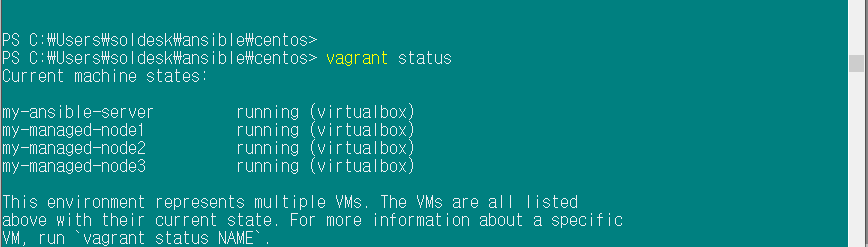
4. vagrant up 이라고하면 server가 설치 될 것이다. 그 후 다시 vagrant up을 하면 node1,2,3 가 설치 될 것이다.
4.1.2 시간대 변경하기
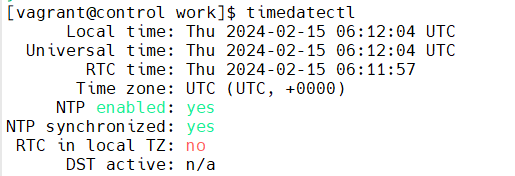
timedatectl로 아래 사진과 같이 확인 할 수 있는데 초기에는 utc로 설정되어있다.
vim timezone.yml 하고 아래와 같이 작성하면
- name: setup CentOS timezone
  hosts: localhost
  gather_facts: no
  become: yes

  tasks:
    - name: set timezone to Asia/Seoul
      timezone: name=Asia/Seoul
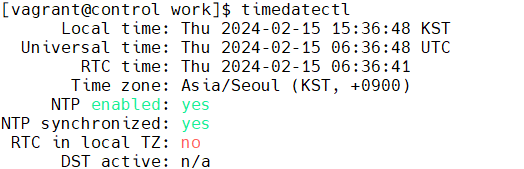
시간이 바뀐 것을 확인 할 수 있다.
기존 vagrant에서 노드 추가
노트패드 ++ 에서 추가한다.
# --- managed node4 : ubuntu 22.04
	config.vm.define "my-managed-node4" do |cfg|
		cfg.vm.box = "generic/ubuntu2204"
		cfg.vm.provider "virtualbox" do |vb|
			vb.name = "my-node4"
			vb.cpus = 1
			vb.memory = 2048
			vb.gui = false
		end
		cfg.vm.host_name = "node4.example.com"
		cfg.vm.network "private_network", ip: "192.168.110.50"
		#cfg.vm.provision "shell", path: "ssh_conf.sh"
		cfg.vm.synced_folder "../data", "/vagrant", disabled: true
	end
# --- managed node5 : ubuntu 22.04
	config.vm.define "my-managed-node5" do |cfg|
		cfg.vm.box = "generic/ubuntu2204"
		cfg.vm.provider "virtualbox" do |vb|
			vb.name = "my-node5"
			vb.cpus = 1
			vb.memory = 2048
			vb.gui = false
		end
		cfg.vm.host_name = "node5.example.com"
		cfg.vm.network "private_network", ip: "192.168.110.60"
		#cfg.vm.provision "shell", path: "ssh_conf.sh"
		cfg.vm.synced_folder "../data", "/vagrant", disabled: true
	end
ansible_env_ready.yml 파일도 수정한다.
수정해준다
 block: |
        192.168.110.20   node1.example.com node1
        192.168.110.30   node2.example.com node2
        192.168.110.40   node3.example.com node3
        192.168.110.50   node3.example.com node4
        192.168.110.60   node3.example.com node5
    - name: add hosts to inventory file
      blockinfile:
        path: /etc/ansible/hosts
        block: |
         [centos]
         node1
         node2
         node3

         [ubuntu]
         node4
         node5
vagrant up으로 node4와 node5를 설치하고
vagrant provision my-ansible-server로 프로비저닝 한다.
[vagrant@control work]$ cat /etc/hosts
127.0.0.1   localhost localhost.localdomain localhost4 localhost4.localdomain4
::1         localhost localhost.localdomain localhost6 localhost6.localdomain6
127.0.1.1 control.example.com control
# BEGIN ANSIBLE MANAGED BLOCK
192.168.110.20   node1.example.com node1
192.168.110.30   node2.example.com node2
192.168.110.40   node3.example.com node3
192.168.110.50   node3.example.com node4
192.168.110.60   node3.example.com node5
# END ANSIBLE MANAGED BLOCK
처음에 ansible ubuntu -m ping -k를 하면 Fail이 뜨지만
ssh로 각 노드를 접속하고 다시 명령어를 치면 success를 확인 할 수 있다.
'Ansible' 카테고리의 다른 글
| Ansible 미니 프로젝트 (0) | 2024.02.22 |
|---|---|
| 0215 (1) | 2024.02.15 |
| ansible 에러 (0) | 2024.02.14 |
| ansible 기본 환경설정 (2) | 2024.02.13 |
| ansible 수요일 (1) | 2024.02.07 |
